Pages

Sunday, July 27, 2014

Send Encrypted Emails in Gmail using SecureGmail

Gmail is relatively secure email service by Google and is one of the best free email service provider. Although Gmail is secure, you can make it more secure by sending encrypted emails in Gmail. If you want to send email more securely from your Gmail account, you can make use a Google Chrome extension called as SecureGmail.


SecureGmail is a Google Chrome extension allowing you to send encrypted emails from your Gmail account. What it does is, it encrypts your email by giving you a password, which you have to send it to receiver. The receiver can only open or read the email by entering the password. Once the receiver enters correct password, your email will be decrypted and visible to the receiver.


How to Send Encrypted Emails in Gmail

Step 1: Go to Chrome store and install secure gmail extension by clicking on Free and then on Add. Once the extension added successfully, you can proceed with step 2.

Step 2: Now Login to your Gmail account by entering username and password

Step 3: If you successfully sign in, you should see a lock icon beside compose button in Gmail. Click on it to compose secure message.


Step 4: Enter recipients, subject, your message and Click on Send Encrypted.


Step 5: Next you will be asked to enter a new password for this Email. Enter your password and a hint.


Step 6: Click on Encrypt & Send to send your Email.


Step 7: Send encrypted password to the receiver through your mobile or text message.


 Step 8: Receiver should open the message and click on Decrypt message with password


Step 9: enter encrypted password and you are done


Note: Both the sender and the receiver must have installed SecureGmail extension to encrypt and decrypt the message.


SecureGmail like extensions are important to keep your data secure from cyber attacks. It is an open source extension, so if you are a developer then you can find the bug (if any) and make it more secure. Now try thisextension 


Saturday, July 12, 2014

Use Wikipedia without Internet Connection

Wikipedia site is a huge, open site which is very popular among people in the world. It is a massive search for knowledge. There are 3.8 million English articles found on Wikipedia


Everyone knows that Wikipedia is used with the internet connection. This situation cannot be found on every people. To overcome this problem, Wikipedia has a feature, where people can access it even in loss of internet connection.

It is the “Pocket Wikipedia”software, which allows you to access in this manner. It has 14 million articles with 24,000 images. It supports Windows and Linux.


Click  to   download wikipedia  here

Wednesday, June 11, 2014

Secure Yourself from Hackers & Hijackers

Hackers and Browser Hijacking is one area of the Net that affects everyone at 

some stage. In addition to having third party utilities such as SpyBot, Anti 


Virus scanners and firewalls installed there are some changes that can be 


made to Windows 2000/XP. Below are some details to make your system


safer from hackers and hijackers.


Some of these tips require editing of the Registry so it is wise to either 


backup the registry and/or create a Restore Point.


1. Clearing the Page File at Shutdown

In the registry navigate to


HKEY_LOCAL_MACHINESYSTEMCurrentControlSetControlSession ManagerMemo

ry Management and add or edit the DWORDClearPageFileAtShutdown. Set it 


to

2. Disable the POSIX and OS/2 Subsystem.

To disable these subsystems, open the registry and navigate to HKEY LOCAL 


MACHINESYSTEMCurrentControlSetControlSession ManagerSubSystems. 


Delete the subkeys Os2 and Posix. then reboot.

3. Never leave default passwords blank.

On installation, Windows sets up an Administrator account with total system 


access and prompts for a password. Guess what: by default, it allows that 


password to be blank. If a user doesn't want to type a password, he can 


simply click Next and the system will be an open door for anyone who wants 


to log on. Always opt for a password of some kind when setting up the 


default account on a machine.


4. Disable the Guest account


Windows XP comes with a Guest account that's used for limited access, but 


it's still possible to do some damage with it. Disable it completely if you are 


not using it. Under Control Panel, select User Accounts, click on Guest Account


and then select Turn Off the Guest Account


5. Install Windows In a different directory.

Install Windows In a different partitions


6. Fake out hackers with a dummy Administrator account


Since the default account in Windows is always named Administrator, an 


enterprising hacker can try to break into your system by attempting to guess 


the password on that account. It you never bothered to put a password on 


that account, say your prayers.


Administrator account it you haven't done so already. Then change the name 


of the Administrator account. You'll still be able to use the account under its 


new name, since Windows identifies user accounts by a back-end ID number 


rather than the name. Finally, create a new account named Administrator


and disable it. This should frustrate any would -be break-ins.


You can add new accounts and change the names of existing accounts in 


Windows through the Local Users and Groups snap in. Right-click on My 


Computer, select Manager, open the Local Users and Groups subtree, look in 


the Users folder and right-click on any name to rename it. To add a new user, 


rightclick on the containing folder and select New User. Finally, to disable an 


account, double-click it, check the Account is disabled box and click OK.


Don't ever delete the original Administrator account. Some programs refuse to 


install without it and you might have to log in under that account at some 


point to setup such software. The original Administrator account is configured 


with a security ID that must continue to be present in the system.


7. Set the Hosts file to read-only to prevent name hijacking.


8. Turn off unneeded Services.


9. Disallow changes to IE settings through IE.


10. Disable simple File Shares.


In Windows XP Professional, the Simple File Sharing mode is easily exploited, 


since it a little too easy to share out a file across your LAN (or the NET at 


large). To turn it off, go m My Computer, click Tools, Folder Option and the 


View tab, and uncheck Use Simple file sharing (Recommended). Click OK.


When you do this you can access the Security tab in the Properties window 


for all folders; set permissions for folders and take ownership of objects


Install WhatsApp On Desktops

WhatsApp  is a famous social application a available for devices running on 

Android, IOS, Blackberry and Windows phones OS, This great application 


allows users to send images, video and audio clips. It requires your mobile 


phone number and internet net connection, It requires that both phones got 

WhatsApp application to directly chat with each other.

Now we can use this application for desktops, and save some data on your 

phone just follow these steps:-


1- Download BlueStacks  App Player this awesome tool lets you run to run 


android applications on your desktop.


2-Install, Then open it and you will find search bar type Whatsapp and hit 


3-Click on it and it will run.


4-Then it will ask you to verify your phone number, it will send you an SMS 

containing a code submit it and you will be ready for chatting.

5-But you will have to add your contacts manually, add them and it's done.

Now, enjoy having Whatsapp on your computer and stop using costfull data 


on your phone.and remember you can't add the contacts in it as it doesn't 


exist on the computer.

Monday, May 5, 2014

How to Block Porn or Malicious Websites

You can block porn websites in your system without using any software, all you need to do is adding the DSN it blocks the porn sites in your system.

This article will help you to block porn websites.

Norton offers 3 kinds of protection policies.
1. Security – Blocks malware, Spam and phishing sites.

Preferred DNS Server:   198.153.192.40
Alternate DNS Server: 198.153.194.40

2. Security and Pornography settings Norton DNS – Blocks malware, Spam, phishing and porn websites.

Preferred DNS Server:   198.153.192.50
Alternate DNS Server: 198.153.194.50

3. Security, Pornography and Non-Family Friendly settings Norton DNS – Blocks Non-family friendly content.

Preferred DNS Server:   198.153.192.60
Alternate DNS Server: 198.153.194.60

4.OpenDNS

OpenDNS is another popular DNS service that will identify porn, fraud, phishing website automatically.
OpenDNS have come up with a new service family shield where it is free configured to block adult websites.
Preferred DNS Server:   208.67.220.123
Alternate DNS Server:   208.67.222.123


5. MetaCert DNS : it is one of the best DNS to block pornography websites worldwide, anyone can use MetaCert DNS.

Preferred DNS Server:   184.169.222.35
Alternate DNS Server:   54.247.162.216

6. Safe DNS 

Safe DNS is also best  DNS service. It blocks porn, spam,phishing and malware website.

Preferred DNS Server:   195.46.39.39
Alternate DNS Server:   195.46.39.40 
Alternate DNS Server: 198.153.194.50


How to add DNS ??

Step 1: Open Control Panel ->Network and Internet -> Network and Sharing Center.


Directly click on Wireless network connection or LAN connection depends on your system.


Friday, March 28, 2014

How to change/hack computer password in CMD (Part 2)


This method is to change windows password after you log in into the windows. But what if you are at log on  screen? To know how to bypass password at windows 7 or 8 log on screen  ( Part 1-click here)


This kind of tricks called hack computer password without user's knowledge. This lesson no require current password in your PC.

1. First click start button and type cmd in search area.
2. Type net user and press enter.
And, you can see username at right hand side. For example here we assume as the user name is  [W.Moniz]


. Now type net user w.moniz and press enter.
4. You can see a long list below. If you can change the password, then, in cmd, you can see a line like this
      "User may change password     Yes"
5. Then, type net user w.moniz * and press enter.
6. CMD will ask you a new password and confirm password. Type your new password and confirm it.


Attention : You must open cmd with click right click and select Run As Administrator. The password you type in field will not be visible..

Wednesday, March 5, 2014

Password Protection to USB Drive without using Software

Most of the people doesn't like other people checking their personal files and folder on USB, including me. This insecure situation creates a huge space to theft our personal data by someone. If you use password protection to your USB, you can reduce the data theft.
Lots of USB password protect software available in present market, but you want to pay money to use it for lifetime. If you're using Windows you don't need any software.


So let's see how to set a password protect on your USB without using any software.
Insert your USB drive to computer
Click on Start
In "Search programs and files" box, type Bitlocker Drive Encryption
Now launch that application.


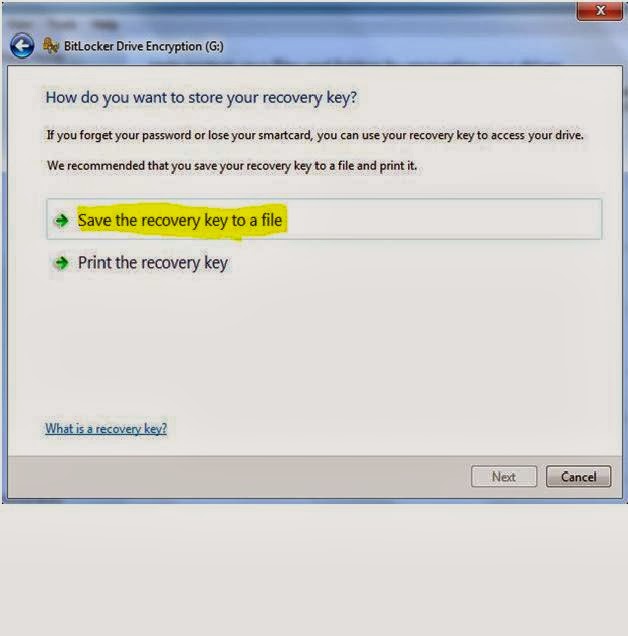
when look for your USB drive and click on Turn on Bitlocker


Windows will ask you to set a password.
Now set a strong password.
Click on Next


Now click on Star Encrypting


That's all !From right now if someone tries to access your USB, Windows will ask him/her to enter the current password.

You can do follow this method for protecting your hard drive partitions also. And this Bit-locker feature is available for only Windows 7 Ultimate and Enterprise versions